![canibuild_white.png]](https://support.canibuild.com/hs-fs/hubfs/canibuild_white.png?height=40&name=canibuild_white.png)
InstaDocs is especially important when Canibuild is used as a front-facing sales tool. All default documents under Services display the cost charged by Canibuild. However, you may prefer to show a marked-up or modified sale price to your client.
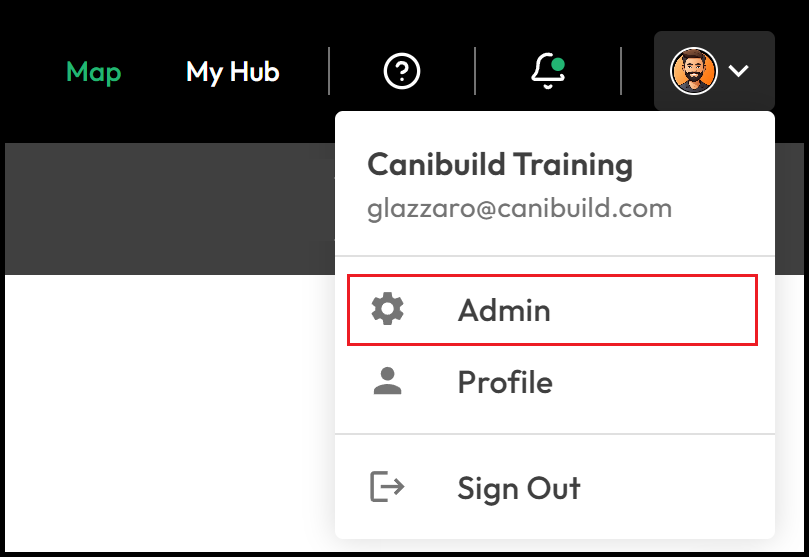
- To access the Admin section Click on your initials on the top right corner of the screen.
- Select Admin from the dropdown menu.
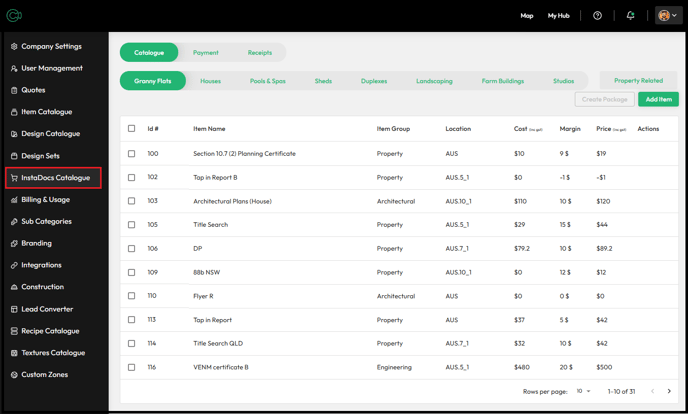
- Click InstaDocs Catalogue.
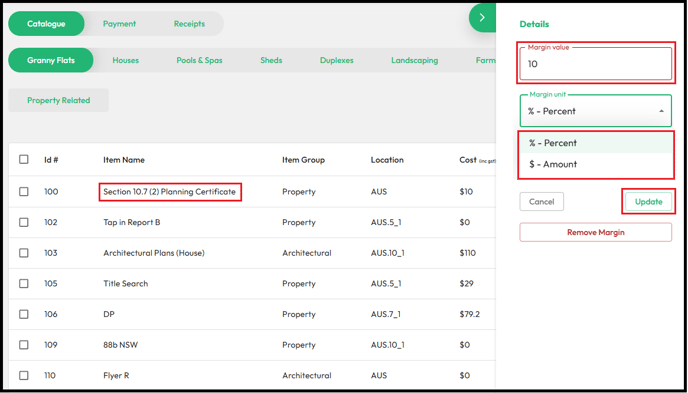
- Click on an item to add a margin.
-
Select a margin type: % (Percentage) or $ (Amount).
-
Enter the Margin Value.
-
Click Update to save the margin.
-
Click Remove Margin to clear the changes.
If Canibuild is being used as a front-facing sales tool, you can add your own documents to InstaDocs.
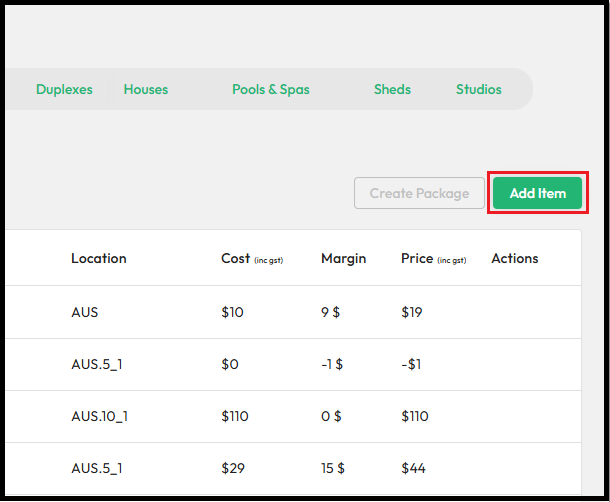
- Click Add Item in the top right corner.
-
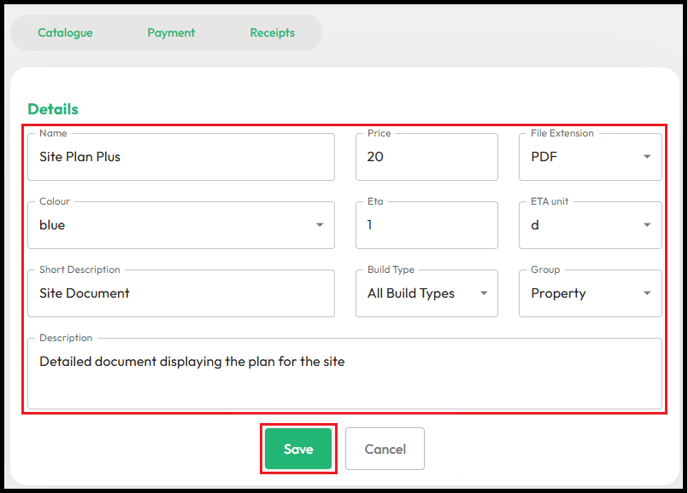
Enter a Name for the new document.
-
Enter a Price.
-
Select a File Extension (PDF / DWG / RVT / ZIP).
-
Select a Colour (blue / orange / purple / green).
-
Enter a number for ETA.
-
Select an ETA Unit (day / week / month).
-
Type a Short Description.
-
Select a Build Type.
-
Select a Document Group (Property / Engineering / Architectural / Surveying).
-
Enter a longer Description.
-
Click the Save button when complete.
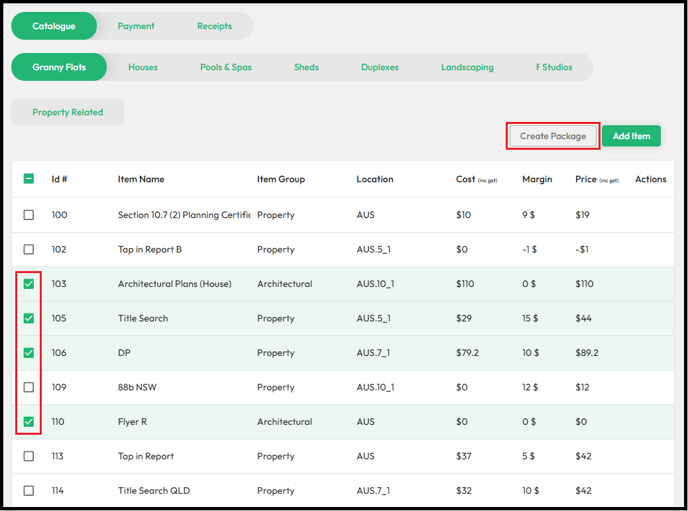
- Click the small squares on all documents you want to group..
-
Click Create Package.
-
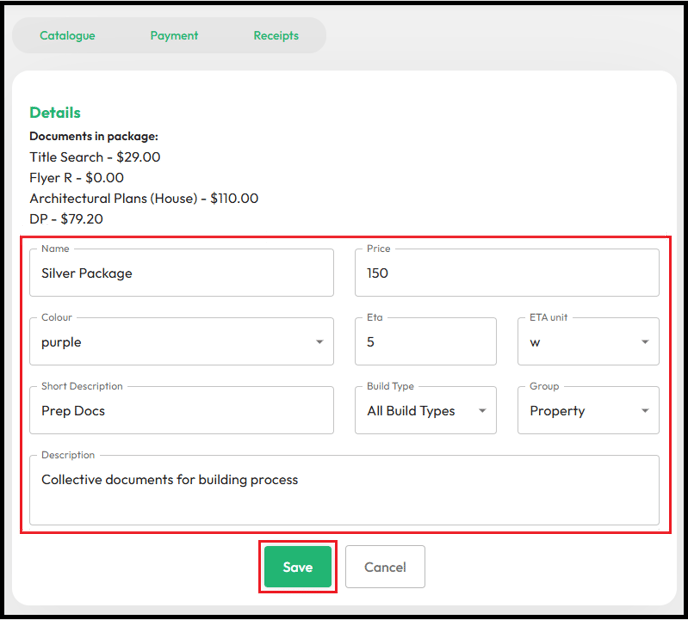
Enter a Name for the new package.
-
Enter a new Total Price.
-
Select a Colour (blue / orange / purple / green).
-
Enter a number for ETA.
-
Select an ETA Unit (day / week / month).
-
Type a Short Description.
-
Select a Build Type.
-
Select a Document Group (Property / Engineering / Architectural / Surveying).
-
Enter a longer Description.
-
Click the Save button when complete.
-
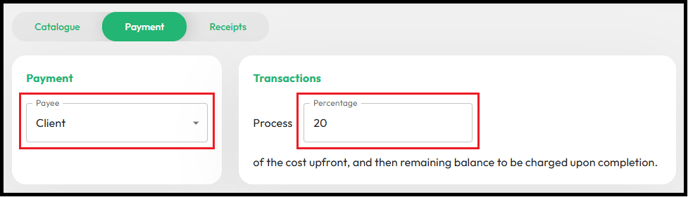
At the time of ordering, set a Prepaid Percentage for the document cost.
-
Choose the Payee: either the Account Owner or the End Client.
-
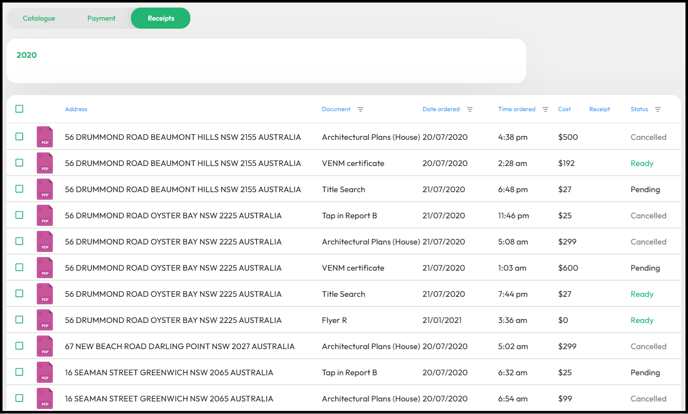
All records of purchased documents are stored under Receipts.
-
Use the sorting tools to organise receipts as needed.