![canibuild_white.png]](https://support.canibuild.com/hs-fs/hubfs/canibuild_white.png?height=40&name=canibuild_white.png)
Editing the details provided below will help populate essential information that appears on the Site Plan, Flyer & Quote. This process also enhances the sorting and filtering options when adding a design onto a property.
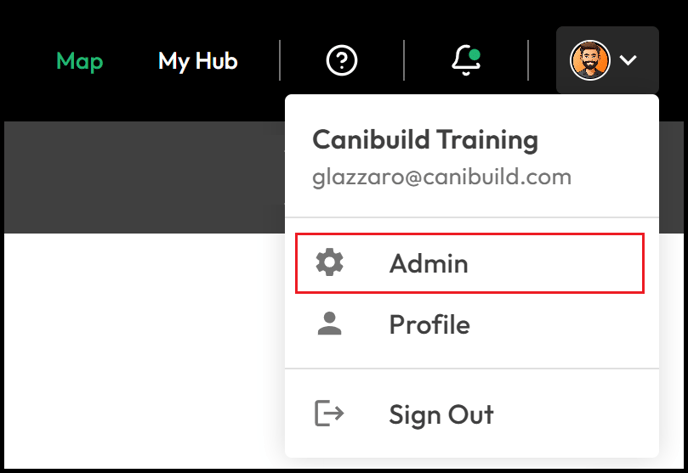
- To access the Admin section Click on your initials on the top right corner of the screen.
- Select Admin from the dropdown menu.
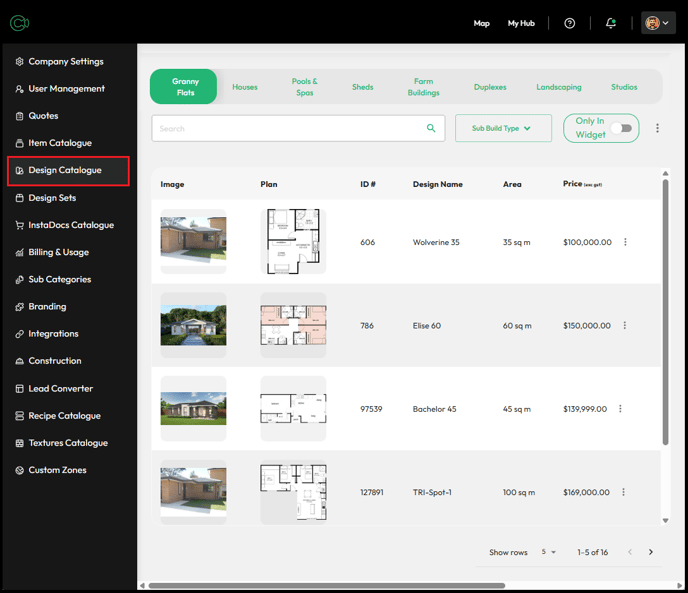
- Click Design Catalogue.
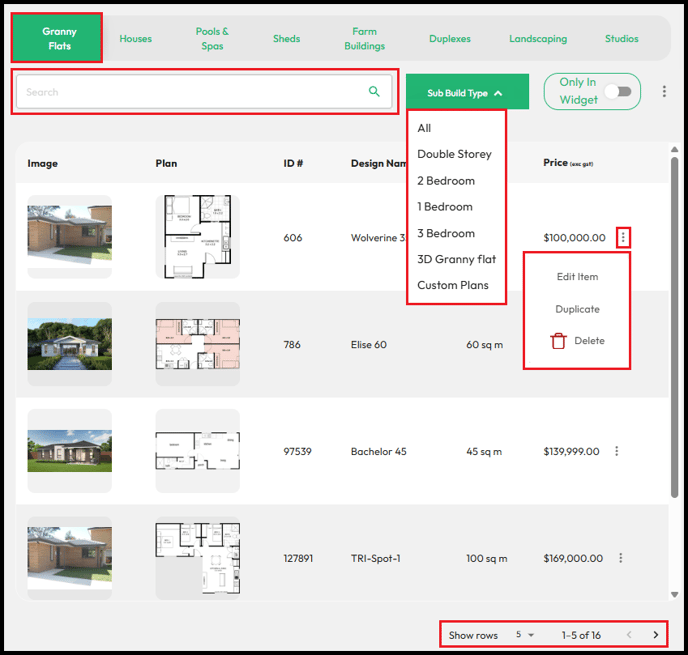
Select a Build Type.
-
Cycle through pages to locate the design.
-
Use the Search Bar to enter a design name.
-
Use Sub Build Type to filter.
-
Click the three dots next to the design.
-
Click Edit.
- Click Duplicate to create a copy of the design.
- Click Delete to permanently remove the design.
A duplicated design will appear at the end of the list you can edit the design name as necessary. The only way to bring back a deleted design is to reupload it.
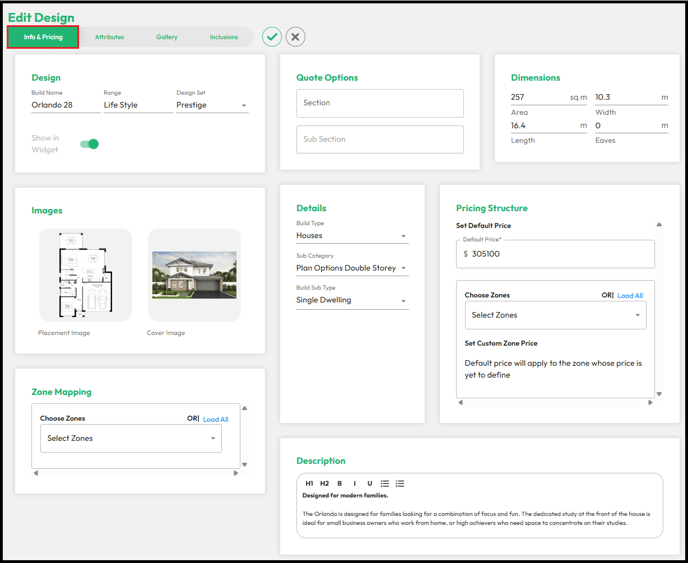
- Select Info & Pricing to edit Design details.
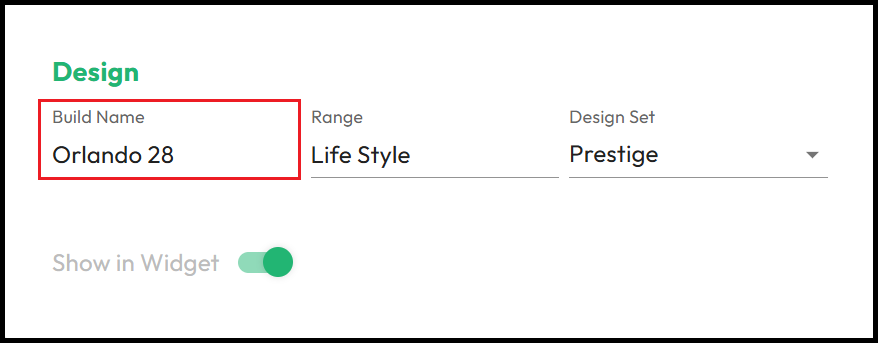
- Edit Build Name.
- Edit Range.
- Select a Design Set.
- Toggle to add to LeadConvertor.
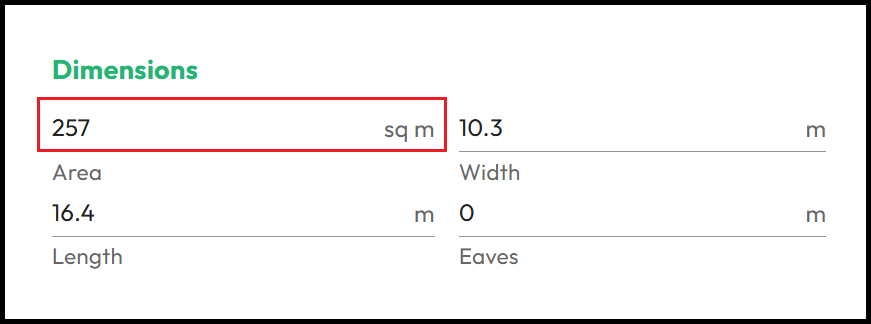
- Edit Area.
- Edit Length.
- Edit Width.
- Edit Eaves.
This is the area that displays on the Site Plan & Flyer.
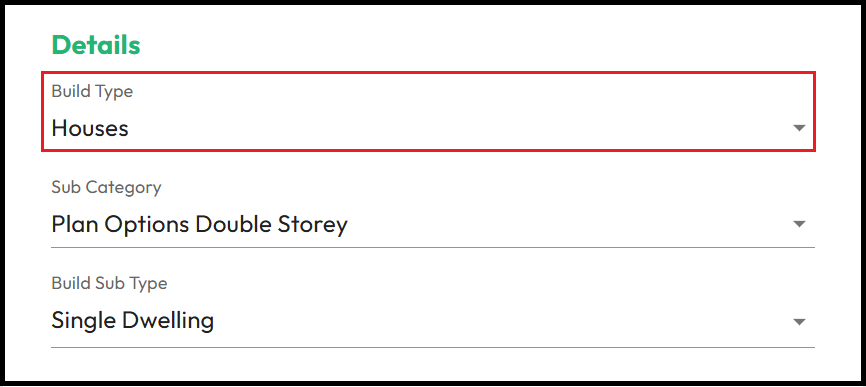
- Select Build Type (Houses, Pools, Granny flat or Shed)
- Select Sub Category.
- Select Build Sub Type.
The Build Type determines which Compliance rules load when the design is placed on a property. This is the only way to reassign a design to a different Build Type.
- Click Placement Image to update or manage.
You will be able to:
- Swap the Floor plans.
- Align Floors (2 Story designs only)
- Add a Facade / Elevations.
- Add Plan Options.
- Add a 3D Model.
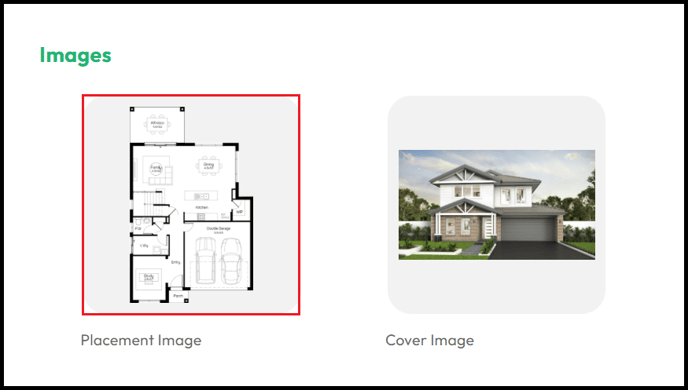
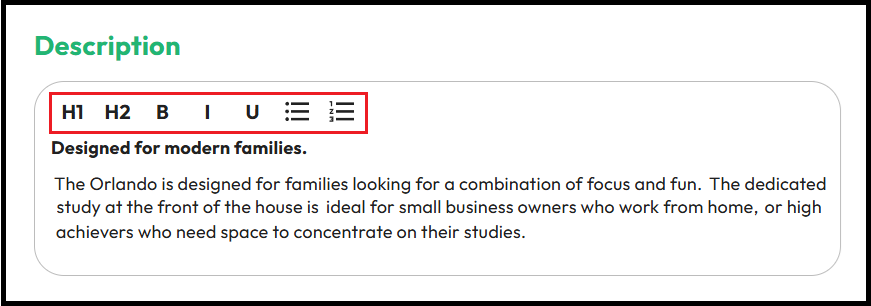
- Add or update a Design Description
- Choose H1 or H2 for preset heading formats.
- Select Bold, Italics or Underline.
- Select to add Dot or Numbered Lists.
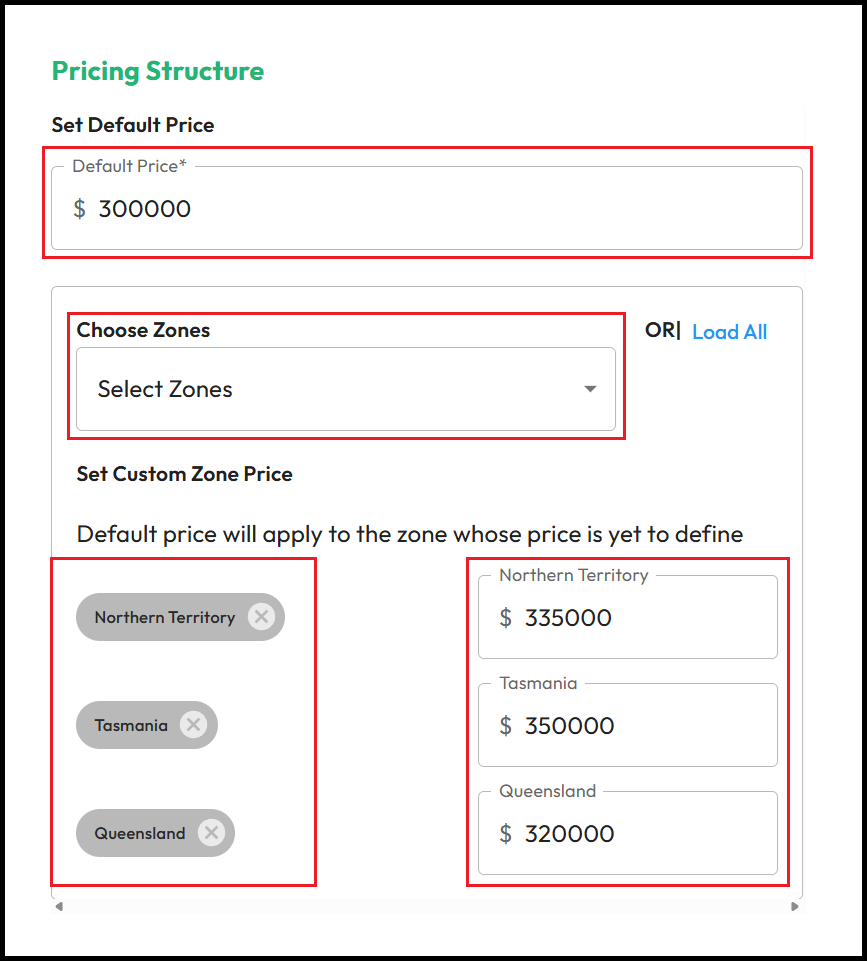
- Enter the Default Price.
To set alterative prices Zones must be created using the Custom Zones feature. Prices can be set based on State, Region or Area code.
- Click Select Zone to add an alternate Price.
- Enter Custom Zone Price.
- Click the X to remove Custom Zone Price.
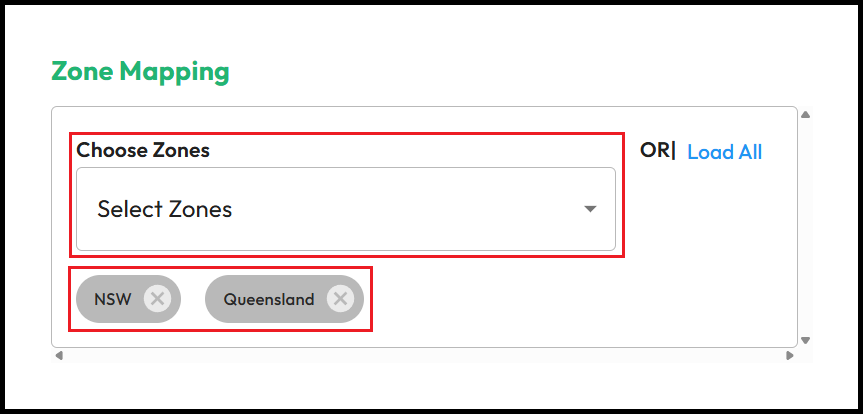
- Click Select Zones.
Zones must be created with the Custom Zones feature to set alterative zones. This makes a design exclusive to that zone. In this case the design can only be placed on a property in NSW or QLD.
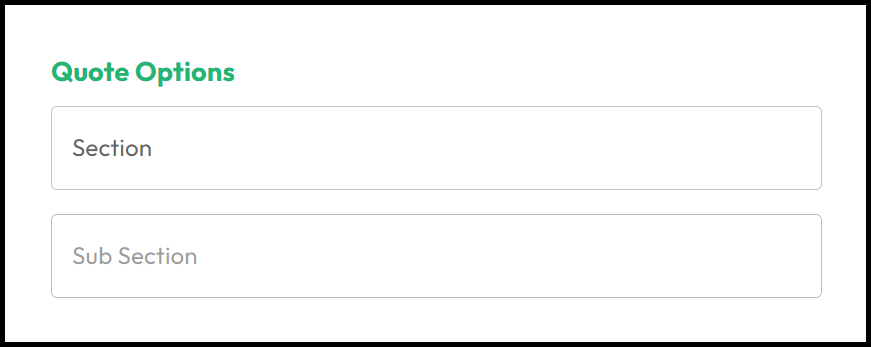
- Select a Quote Section.
- Select a Quote Subsection.
This requires a Quote Subscription. It allocates the design to a section of the quote instead of it appearing at the top.